1. Install the official LinkVpn app
Download LinkVpn from the official Google Play listing. The package name is com.free.link.vpn; use it to distinguish the official listing from similarly named apps.
Avoid modified APK files from third-party download sites. An unofficial build can change the networking, privacy or advertising code and cannot be verified by the LinkVpn team.
2. Connect LinkVpn for the first time
- Open LinkVpn on your Android device.
- Choose an available location from the location list.
- Select one of the connection options currently shown by the app.
- Tap Connect.
- Approve the Android VPN connection request.
- Wait for LinkVpn to confirm that the connection succeeded.
The Android permission dialog is a system requirement. It allows LinkVpn to create the local VPN interface; declining it prevents the connection from starting.
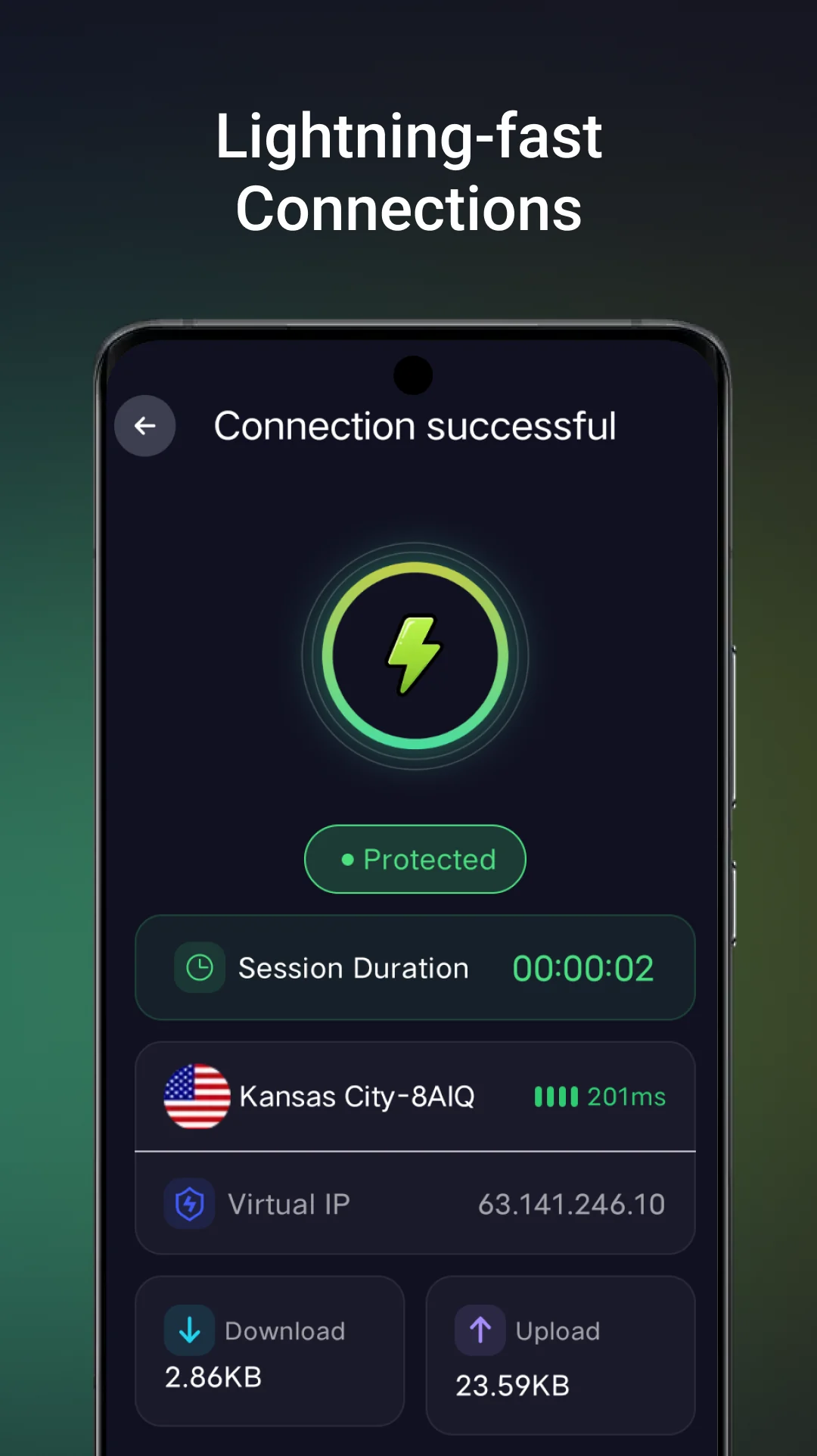
3. Change the VPN location or connection route
To change location, disconnect the current session, select another available location and connect again. If one location is slow or unavailable, another location may provide a different route for the current network.
Connection options depend on the configuration available in the app. A route that works on Wi-Fi may behave differently on mobile data because networks can apply different filtering or routing policies.
4. Exclude selected Android apps
LinkVpn can keep selected apps outside the VPN connection. Open the app-exclusion control, select the apps that should use the normal network, then disconnect and reconnect so the new selection applies.
Excluded apps do not receive the LinkVpn route. Review this list when one app shows a different location or network behavior from the rest of the device.
5. Disconnect and understand the Android notification
Use the Disconnect control in LinkVpn when you want to stop the session. Android may also show a persistent VPN or foreground-service notification while LinkVpn is connected; this keeps the active network state visible.
If the connection stops when the screen turns off, allow LinkVpn to run in the background and review device-specific battery restrictions.
6. What to do when LinkVpn is not connecting
If LinkVpn is not connecting, first confirm that the device has Internet access without the VPN. Then select another available location, try another connection option and temporarily disable battery or data saver.
Android supports only one active VPN service for the current user profile. Stop another VPN, firewall or local filtering app before trying LinkVpn again. The full LinkVpn connection troubleshooting checklist covers permission, no-Internet and background-connection issues.
7. Common LinkVpn questions
Does LinkVpn work on Android?
Yes. LinkVpn is currently available for Android devices through its official Google Play listing.
Why does Android ask for VPN permission?
Android requires system approval before an app can create a VPN interface. LinkVpn cannot start the VPN connection until you approve this prompt.
How do I change the LinkVpn location?
Disconnect the current session, choose another available location in LinkVpn and connect again.